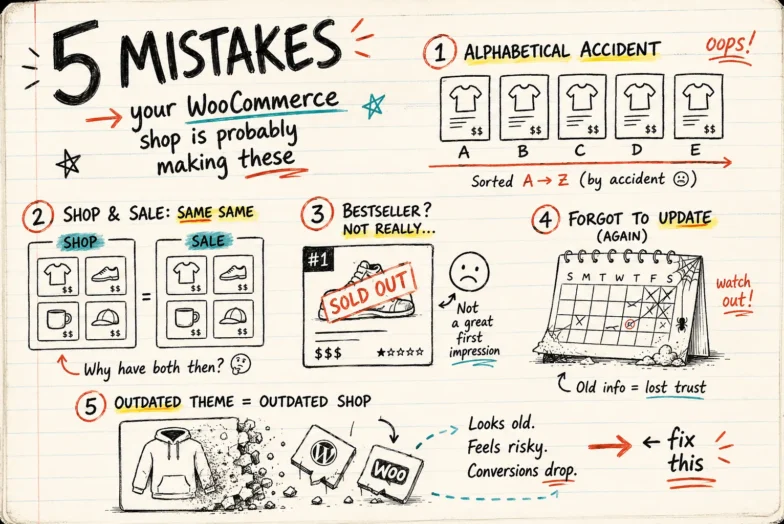
Most stores spend weeks getting product photography right, days writing descriptions, and approximately zero minutes thinking about what order products appear in on the shop page.
Which is unfortunate, because shop-page order is one of the highest-leverage decisions in the whole store. The first row gets the majority of the clicks. Anything below the fold competes for scraps. Anything on page two might as well live in a different universe.
WooCommerce gives you all the tools to control this — but most store owners never use them, and the results show. Here are five sorting mistakes I see again and again, and the small fixes that meaningfully improve how your store performs.
Mistake 1: Leaving menu_order at Zero on Every Product
When you create a new product in WooCommerce, the hidden menu_order field defaults to 0. That’s the value WooCommerce uses to determine display position under the “Default sorting” option — lower number first, with product name as the tiebreaker.
If you’ve never deliberately set this value, all your products share the same menu_order (zero). The display order is then decided entirely by the tiebreaker — meaning your shop page is showing products in essentially alphabetical order.
Stores that sell “Air Purifier” and “Premium Headphones” end up with the purifier on top, even if the headphones are the flagship product.
The fix: Set menu_order on your top 10–20 products at minimum. You can do this in three ways:
- Built-in: Products → Quick Edit → “Order” field. Lower number = shows first.
- Code: Update via the REST API, WP-CLI, or a one-off script.
- Plugin: Use a drag-and-drop interface so you don’t have to think about numbers at all.
If you’re choosing between these, the rule of thumb is catalog size. Under 30 products: Quick Edit is fine. Over that: a visual tool saves you real time.
Mistake 2: Treating Your Shop Page and Category Pages as the Same Problem
Almost every store has at least three contexts where product order matters:
- The main shop page (all products)
- Category pages (e.g. “T-Shirts,” “Sale,” “New Arrivals”)
- Tag or filter pages
These shouldn’t all show products in the same order.
Your “Sale” category should lead with steepest-discount or highest-margin clearance items. Your “New Arrivals” category should lead with the most recent drop. Your main shop page should probably lead with your absolute best-sellers regardless of category.
Most stores skip this step entirely — either because they don’t know they can sort by category, or because the built-in Quick Edit doesn’t make per-category sorting easy. (The “Order” field there sets a single global menu_order, not a per-category value.)
The fix: Sort each context deliberately. The built-in menu_order field is global, so for true per-category control you’ll want either custom code that hooks into pre_get_posts with is_product_category() checks, or a plugin that supports per-category arrangements.
Our Rearrange Products for WooCommerce plugin (free on WordPress.org) handles this with a category filter on the drag-and-drop screen — each category remembers its own arrangement independently. There are other plugins that do this too; the point is to do it, not which tool you pick.
Mistake 3: Leaving Out-of-Stock Products at the Top of the Page
This one is painfully common.
A store has a hero product that’s been sold out for two weeks. The product page still exists, the SEO is great, and the menu_order is set to 1 because it was the best-seller before it ran out. So it sits at the top of the shop page, advertising “OUT OF STOCK” to every visitor who lands there.
For some customers this signals “everything popular is gone” — they bounce. For others, it just wastes the most valuable real estate on your site.
The fix: There are a few approaches:
- WooCommerce setting: Go to WooCommerce → Settings → Products → Inventory and enable “Hide out of stock items from the catalog.” This removes them entirely until restocked. Aggressive but simple.
- Manual approach: When something goes out of stock, bump its
menu_orderto a high number (999) so it falls to the bottom. Bring it back when restocked. - Automated approach: Use a sorting tool that supports “in-stock first” as an automated rule. The Pro version of our plugin includes this as one of nine Smart Sort options; other tools may offer similar.
Whichever you pick, the principle is the same: don’t sell out-of-stock products top billing.
Mistake 4: Set-and-Forget Order (No Seasonal Refresh)
Most stores set their product order once when they first launch, and then never touch it again.
This is fine for evergreen catalogs. It is not fine for anyone selling anything seasonal, time-sensitive, or campaign-driven. If your Halloween costumes are still buried below your summer dresses on October 15th, your order isn’t doing its job.
The friction here is usually practical, not philosophical. People know they should update the order — they just don’t, because doing it manually for 50+ products every season feels like a chore.
The fix: Build sorting refreshes into your existing calendar. Suggested cadences:
- Monthly: Quick review of your top 20. Promote anything trending, demote anything fading.
- Seasonally (4×/year): Major refresh aligned with seasons or industry cycles.
- Campaign-driven: Refresh before each big sale (Black Friday, end-of-season clearance, new product launches).
If the manual work is the blocker, two paths to making it easier:
- Sort presets — save an arrangement once, switch to it in one click later. Our Pro version handles this; some other plugins do too.
- Smart Sort rules — apply an automated rule (e.g. “best sellers first” or “newest first”) instead of manually dragging.
Either path turns a multi-hour task into a few minutes.
Mistake 5: Sorting From a Theme Feature (or a Plugin That Doesn’t Survive Theme Changes)
Many premium WooCommerce themes ship with their own “product order” or “custom arrangement” feature baked in. This is convenient — until you change themes.
When the order is stored as part of the theme’s settings (in wp_options under the theme’s namespace), switching themes wipes it. You then either rebuild manually, or — more commonly — forget you had a custom order at all and run with the WooCommerce default until you notice the drop.
The same applies to some sorting plugins that store arrangements inside theme-coupled options or post meta with theme-specific keys.
The fix: Make sure whichever tool you use stores the arrangement independently of your theme. The two safe approaches:
- Native
menu_orderfield (built-in approach) — survives theme changes because it’s a core WordPress field. - A plugin with its own dedicated database table — purpose-built sorting plugins that store data in their own table (rather than borrowing the theme’s options) will survive theme switches cleanly.
Quick way to check: ask the plugin author or check the documentation for “theme-independent” or “custom database table.” If you can’t find a clear answer, do a quick test — switch to the default Twenty Twenty-Five theme for a minute and see if the order persists.
A Quick Health Check You Can Run Right Now
Five things to check on your store today, in under ten minutes:
- Open your shop page in an incognito window. Is your best-seller in the top row? (Mistake 1)
- Open three different category pages. Are they all showing products in the same order? (Mistake 2)
- Search your top 10 displayed products for “out of stock.” How many find a match? (Mistake 3)
- When did you last review your sort order? If it’s been longer than a season, you have work to do. (Mistake 4)
- Switch your theme to the default Twenty Twenty-Five for 30 seconds and see if your order survives. (Mistake 5)
If three or more of these turn up issues, your sorting setup is leaving real revenue on the table.
The Underlying Lesson
Every one of these mistakes shares the same root cause: product order is a decision that’s implicitly being made whether you make it explicitly or not. WooCommerce will display products in some order. The question is whether that order reflects what you’d want a new customer to see — or whether it’s the default you’ve never touched.
The good news is none of these mistakes are hard to fix once you know they exist.
If you’d like a visual way to manage product order across your shop and categories, Rearrange Products for WooCommerce is free on WordPress.org. Drag-and-drop, per-category support, theme-independent, no code. Install it once and the next four mistakes become a 10-minute job.